Checkout
Collect payment, print receipts, and manage completed sales
Checkout is how you collect payment after a client's visit. The whole process happens in a panel that slides in from the right — no page navigation needed.
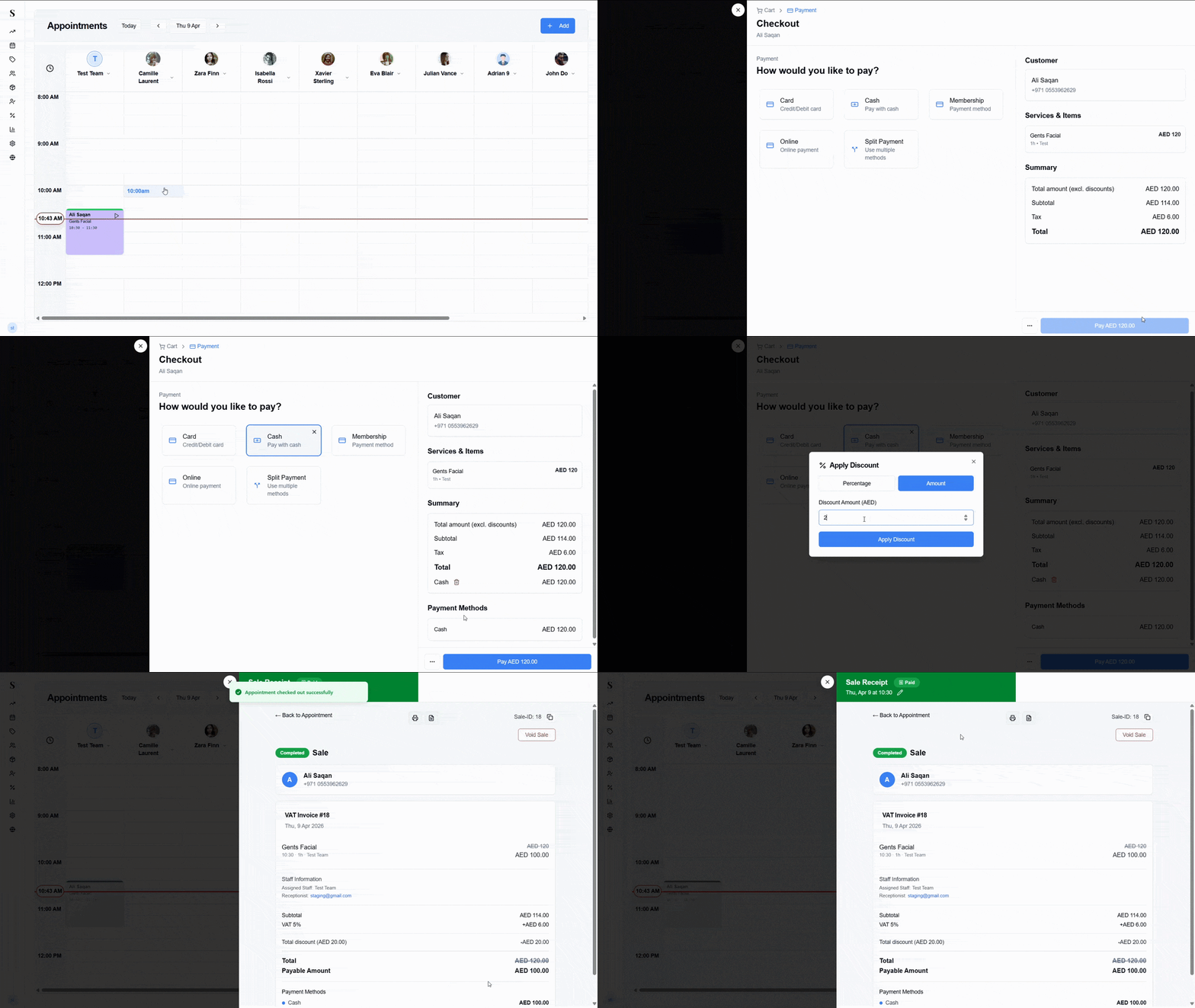
Starting a checkout
On the Calendar, click on the appointment card you want to check out.
In the Edit Appointment panel that opens, click the Checkout button at the bottom right.
The checkout screen slides in from the right, showing the client's name and the services from the appointment already loaded.
The checkout screen
The checkout screen is split into two areas:
Left — Payment Choose how the client is paying. The available options are shown as cards:
| Option | Description |
|---|---|
| Card | Credit or debit card |
| Cash | Pay with cash |
| Membership | Redeem a pre-paid session from the client's membership |
| Online | Online payment |
| Split Payment | Divide the bill across more than one payment method |
Click the option that applies. The selected method will be highlighted.
Right — Order summary Shows the client's name and phone number, the services being charged, and a full summary:
- Total amount (excluding discounts)
- Subtotal (after any discount)
- VAT (5%)
- Total due
- The chosen payment method and amount
Applying discounts, tips, and vouchers
At the bottom left of the checkout screen, click the ··· (three dots) button to reveal additional options:
| Option | What it does |
|---|---|
| Apply Discount | Add a fixed or percentage discount to the sale |
| Add Tip | Add a gratuity for the staff member |
| Split Payment | Divide the total across multiple payment methods |
| Apply Voucher | Redeem a voucher code to reduce the balance |
Completing the payment
Once you've selected the payment method and applied any discounts or tips, click the Pay AED [amount] button at the bottom right to finalise the sale.
Sale receipt
After payment is confirmed, the Sale Receipt screen appears. The header turns green and shows a Paid badge confirming the transaction is complete.
From here you can:
Print the receipt
Click the print icon (or the document icon for A4) to open the Invoice Preview. You'll see two format options:
- Thermal Receipt (80mm) — formatted for a POS receipt printer
- Standard Invoice (A4) — a full-page formatted tax invoice
Both formats show:
- Your salon name, TRN, and branch location
- Invoice number, date, time, and receptionist
- Customer name and phone
- Services performed and the staff team
- Subtotal, VAT (5%), and total
- How the sale was paid
- "Thank you for your visit!" at the bottom
For Thermal Receipt, you can Download PDF or Browser Print. For Standard Invoice, click Print.
View the client's profile
From the sale receipt screen you can navigate directly to the client's full profile to see their history, memberships, and vouchers.
Void a sale
If a mistake was made, click the Void Sale button (shown in red on the right side of the receipt screen). This will cancel the transaction and reverse the sale record.
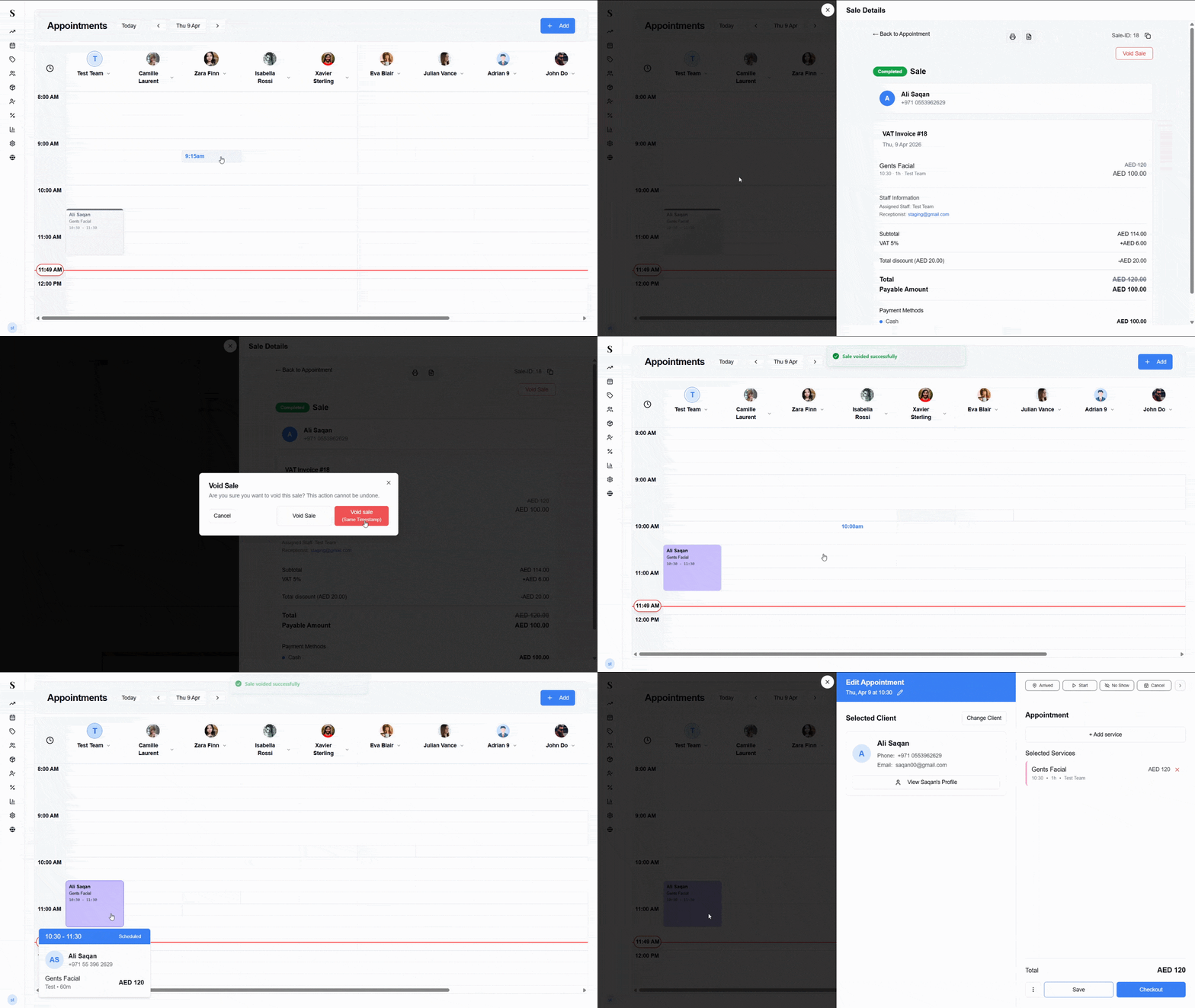
Voiding a sale cannot be undone. Only void a sale if you're certain there was an error — for example, the wrong client was charged or the wrong services were added.
Checkout summary
| Step | What happens |
|---|---|
| Click Checkout on the appointment | Checkout panel slides in with services pre-loaded |
| Choose a payment method | Card, Cash, Membership, Online, or Split |
| Apply extras via ··· menu | Discount, tip, split payment, or voucher |
| Click Pay | Sale is recorded and receipt screen appears |
| Print receipt | Choose Thermal (80mm) or Standard Invoice (A4) |
| Void Sale | Cancels and reverses the transaction if needed |