Website & Booking Module
Manage your public booking Module and salon website profile
NxCut automatically creates a public booking Module for your salon. Clients can visit it to browse your services, pick a staff member, choose a time, and book an appointment — without you needing to do anything to set it up.
Click the globe icon in the left menu to manage your website settings.
The Website section is only accessible to admin users.
At the top right of the page you'll find two quick-access buttons:
- Booking Page — opens your live client booking page in a new tab
- My Website — opens your full salon website
Edit your profile
The first section lets you update your salon's basic public information.
| Field | What it's for |
|---|---|
| Salon Name | The name displayed on your booking page |
| Mobile Number | Your salon's contact number |
| Email Address | Your contact email |
| Owner Name | The name of the salon owner |
| Website | Your auto-generated booking URL (read-only) |
Click Save Changes when done.
Website Details
Customise how your booking page looks to clients.
| Field | What it's for |
|---|---|
| Logo Text | The text displayed as your logo |
| Website Title | The page title shown in the browser tab |
| Landing Page Image | The hero image at the top of your booking page (PNG, JPG, GIF or WebP, max 5MB) |
Click Upload Image to add or replace the landing page photo, then click Save Changes.
Contact Us
This section shows the contact details displayed to clients on your booking page — your email address and WhatsApp number. These are pulled from your profile automatically.
How the client booking flow works
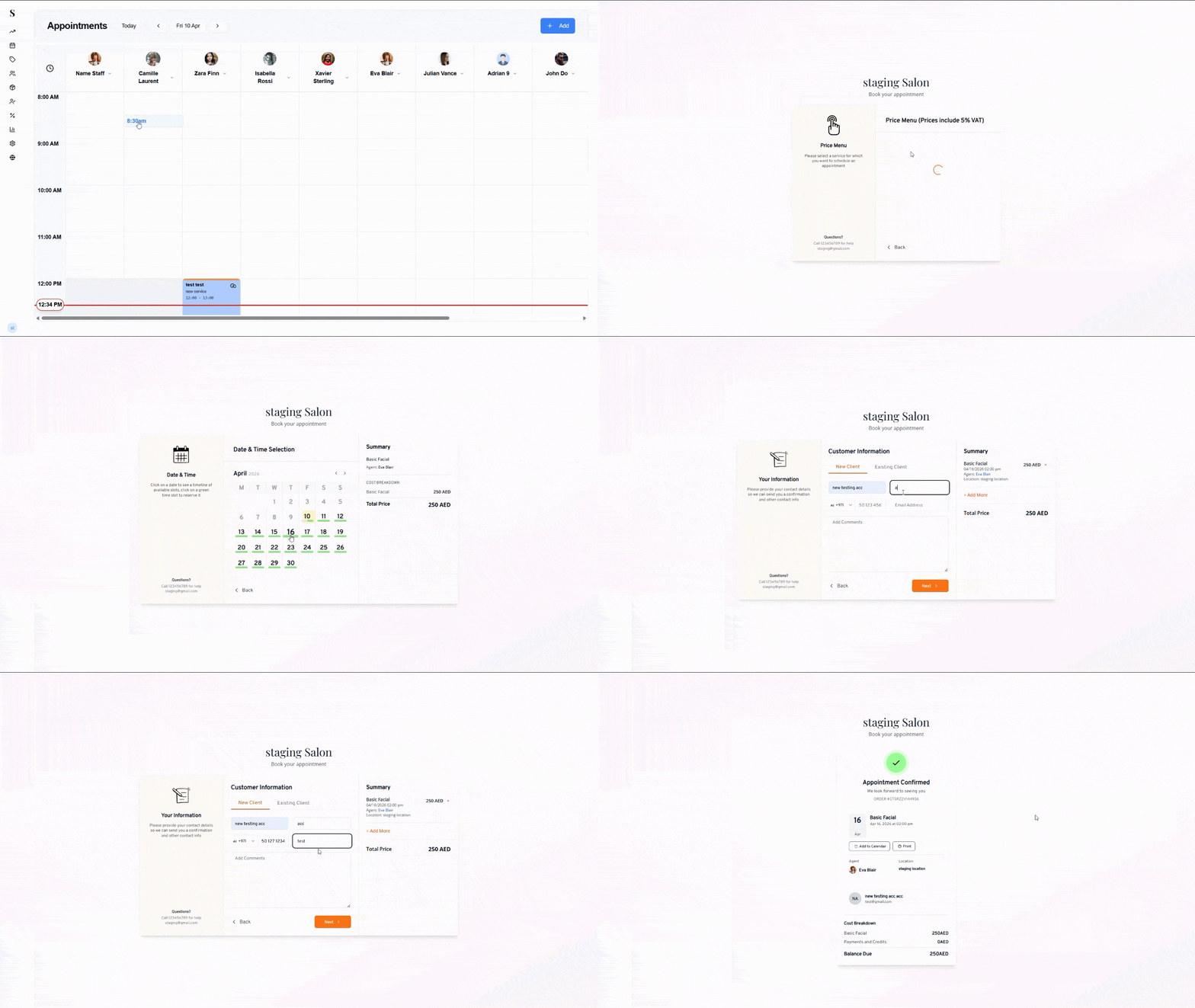
When a client visits your booking page, they go through a simple step-by-step process:
Step 1 — Select a location
The client picks which branch they want to visit. If you only have one location, this step is skipped automatically.
Step 2 — Browse the price menu
Services are grouped by category (Facial, Hair, Nails, etc.). Prices include 5% VAT. The client taps a category to see the individual services and their prices, then selects the one they want.
Step 3 — Pick a professional
The client chooses which staff member they'd like. They can pick a specific person or select Any Agent to be assigned to whoever is available.
Step 4 — Choose a date and time
A calendar shows the current month. Days with available slots are marked with a green underline. The client clicks a date to see the available time slots for that day, then taps a green slot to reserve it.
A Summary panel on the right shows the selected service, agent, and total price. The client can also click + Add More to add additional services to the same booking.
Step 5 — Enter contact details
The client fills in their information:
- New Client — enters their details for the first time
- Existing Client — enters their registered phone number to pull up their profile
They can also add any special requests or notes in the Additional Comments field.
Step 6 — Appointment confirmed
After submitting, a confirmation screen appears showing:
- A green Appointment Confirmed message
- A unique ORDER # for reference
- The date, time, service, agent, and location
- Add to Calendar and Print buttons
- A full Cost Breakdown showing the service price, any credits applied, and the balance due
Confirming Booking
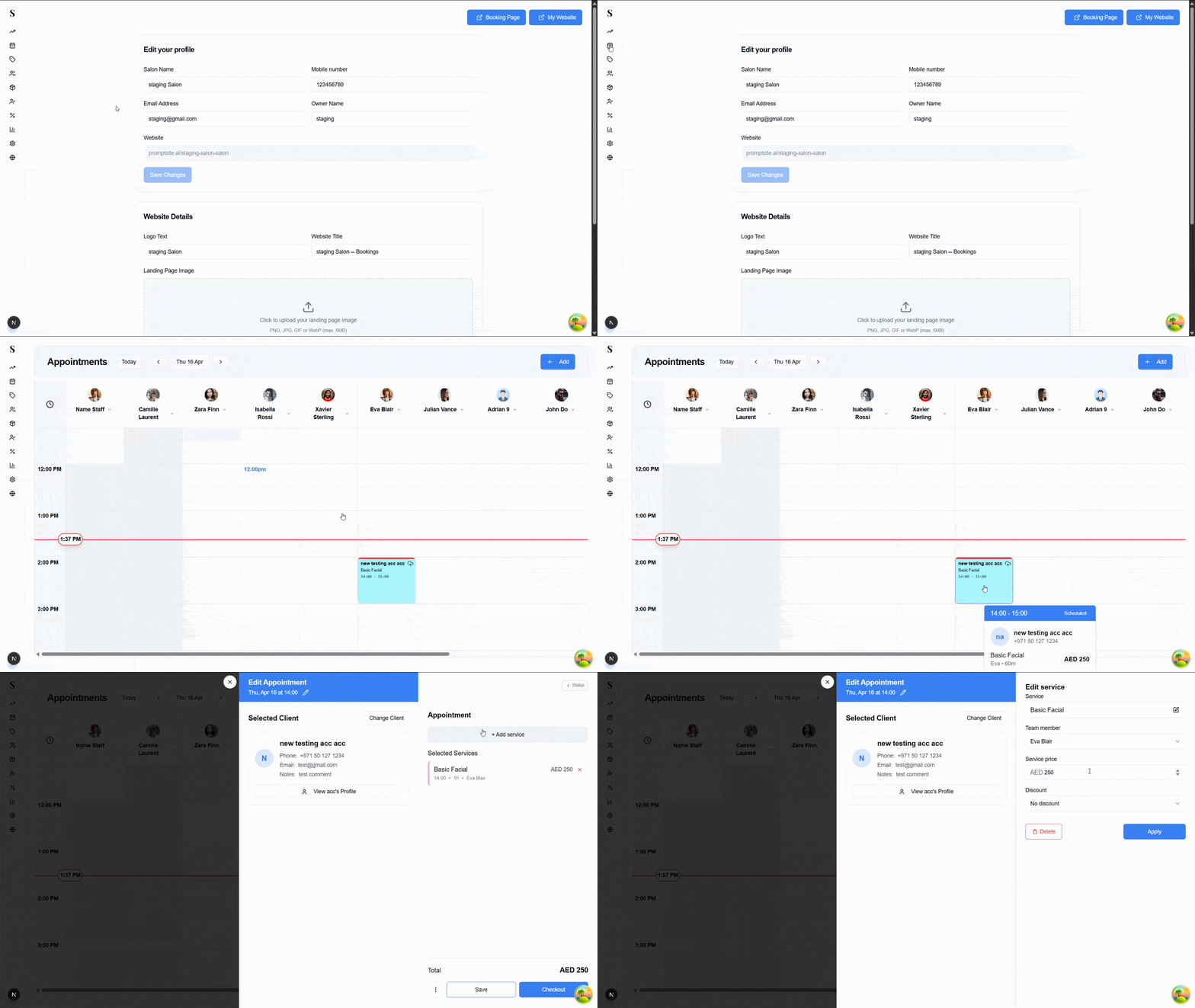
The appointment is instantly added to your Calendar in NxCut and visible to the assigned staff member.