Commission
Set up commission rules for your staff and generate detailed salary slips
The Commission page is where you define how much each staff member earns from the services they perform, and view a live breakdown of what they've earned. NxCut calculates everything automatically based on real sales data.
Click Commission in the left menu to get started.
Commission is only accessible to admin users.
The page is split into two sections: Team Member Commissions (your commission rules) and Commission Calculations (the live earnings breakdown).
Team Member Commissions
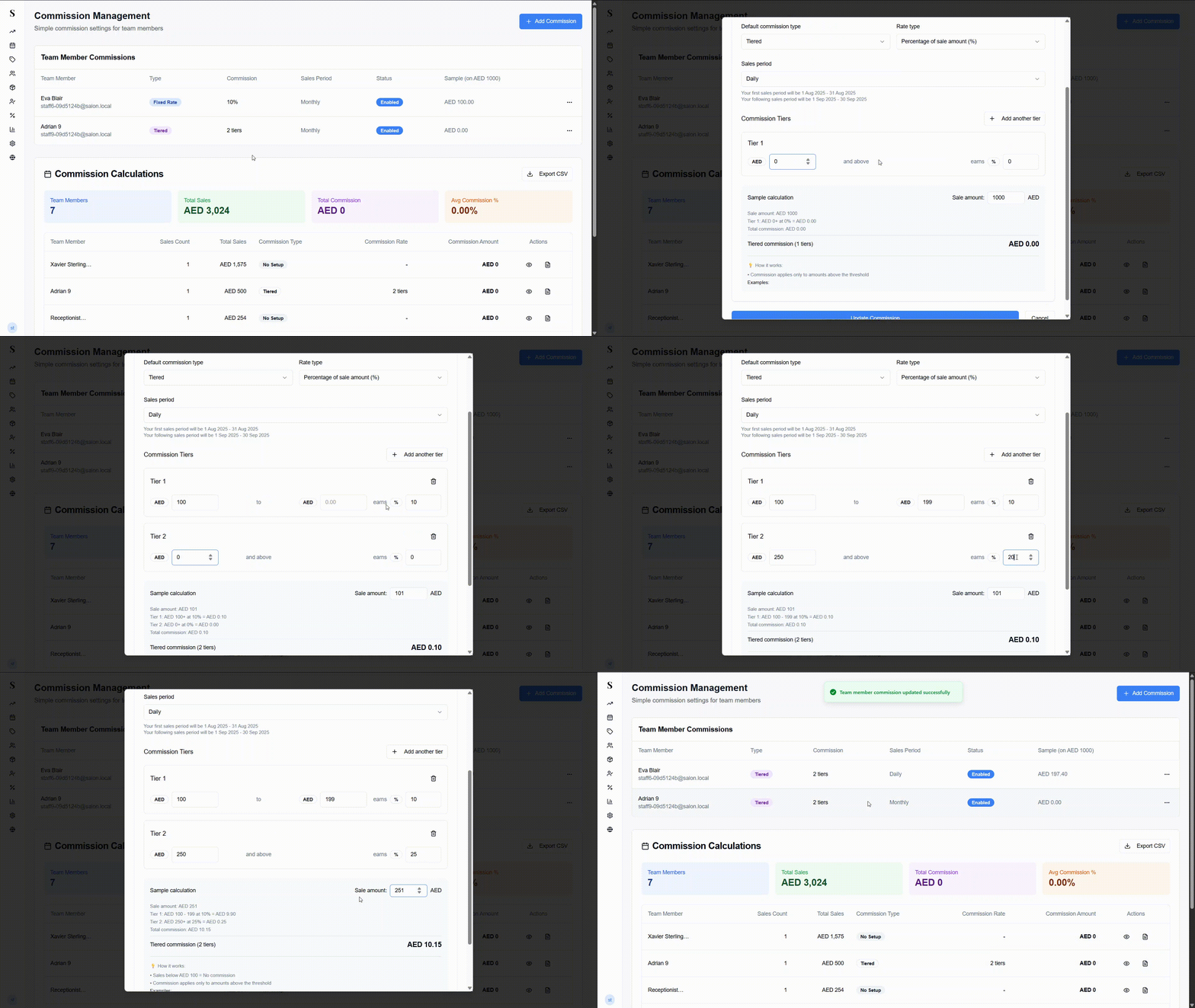
This section lists all the commission rules you've set up. If no rules have been created yet, it will show "No commission settings found — add a commission setting to get started."
Setting up a commission rule
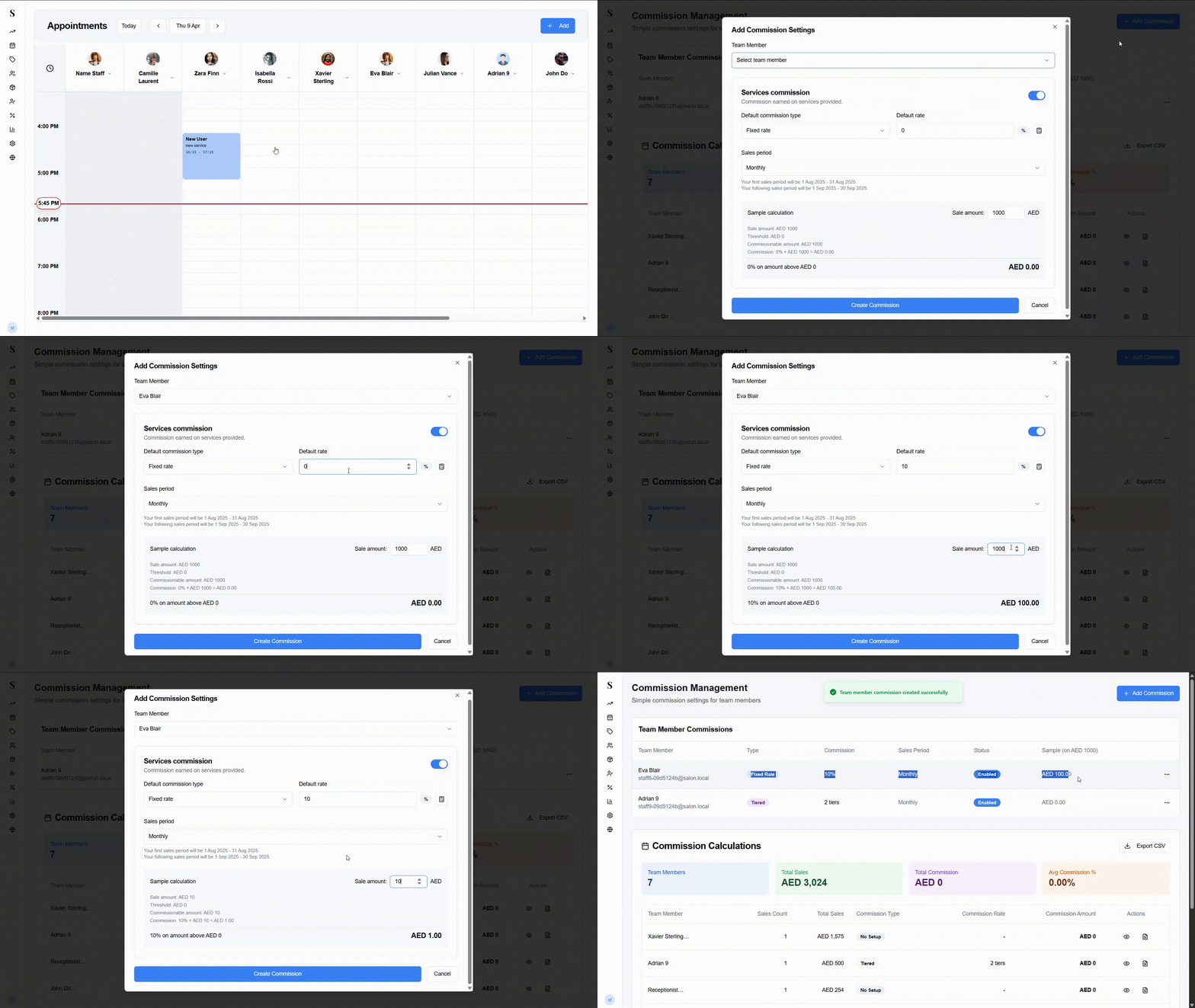
Click + Add Commission in the top right. A form will pop up.
Select a Team Member from the dropdown.
The Services Commission section is enabled by default. This means the staff member earns commission on the services they perform.
Choose the Default commission type:
- Fixed rate — a set percentage applied to every sale they make
Enter the Default rate — the percentage they'll earn (e.g., 30%).
Set the Sales period — how often commission is calculated. The default is Monthly. NxCut will show you exactly when the first and following periods will be.
Use the Sample calculation box to double-check your setup. Enter a sale amount and NxCut will show you the exact commission calculation — including the threshold, commissionable amount, and final payout.
Click Create Commission to save.
The sample calculation updates in real time as you type — use it to make sure the numbers look right before saving.
Commission Calculations
Below the commission rules is the Commission Calculations table — a live breakdown of what each staff member has earned for the current period.
At the top you'll see four summary cards:
| Card | What it shows |
|---|---|
| Team Members | Number of staff with sales in this period |
| Total Sales | Combined revenue across all staff |
| Total Commission | Total commission owed to the team |
| Avg Commission % | Average commission rate across the team |
The table below shows each staff member with:
- Sales Count — number of sales completed
- Total Sales — their total revenue
- Commission Type — their commission setup, or a No Setup badge if none has been configured
- Commission Rate — their percentage
- Commission Amount — what they've earned
- Actions — an eye icon to view the breakdown, and a salary slip icon to open their slip
Click Export CSV to download the full table for payroll processing.
Salary Slip
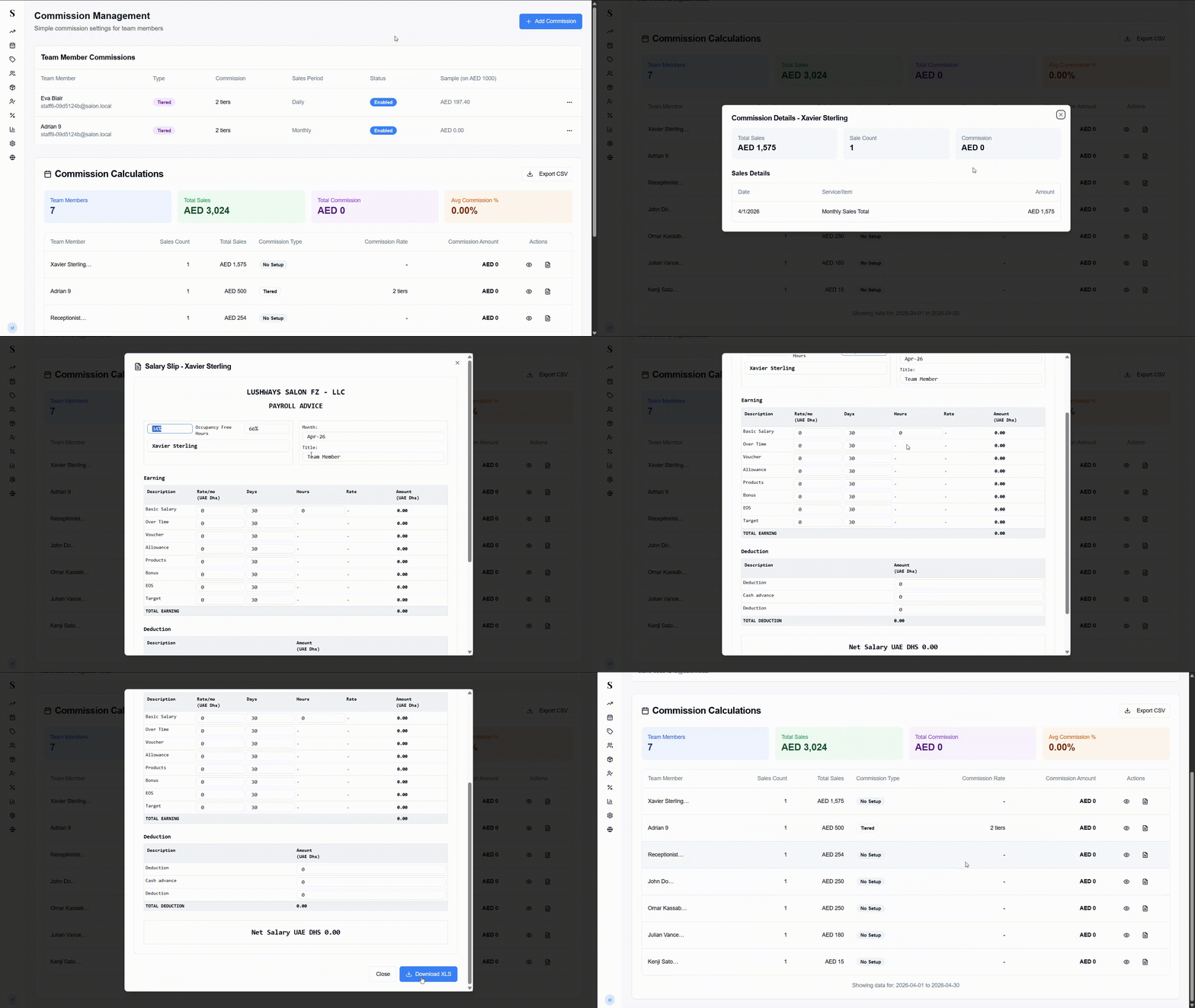
Click the salary slip icon next to any team member to open their Salary Slip. This is a full payroll breakdown that can be filled in and downloaded.
The slip is headed with your salon's name and labelled as Payroll Advice. It shows the staff member's name, their occupancy percentage, free hours, the month, and their title.
Earnings section
A table where you can enter values for each earning type:
| Earning | Description |
|---|---|
| Basic Salary | Their fixed monthly salary |
| Over Time | Overtime hours worked |
| Voucher | Commission from voucher sales |
| Allowance | Any allowances paid |
| Products | Commission from product sales |
| Bonus | Any bonus payment |
| EOS | End of service accrual |
| Target | Target-based incentives |
Each row has editable fields for rate, days, and hours. The Total Earning is calculated automatically.
Deductions section
Enter any amounts to deduct:
- Deduction
- Cash advance
- Additional deduction
The Total Deduction and final Net Salary are calculated automatically at the bottom.
Once the slip is complete, click Download XLS to save it as a spreadsheet, or Close to exit without saving.
Quick reference
| What do you want to do? | How? |
|---|---|
| Set how much a staff member earns | Click + Add Commission and pick their percentage |
| Check if the numbers are right before saving | Use the Sample calculation box — type in a sale amount and it shows the payout |
| See what everyone has earned this month | Scroll down to the Commission Calculations table |
| Download earnings for payroll | Click Export CSV |
| Print a salary slip for one person | Click the salary slip icon next to their name |
| Staff member shows "No Setup" | They have sales but no commission rule yet — add one for them |