Dashboard
A real-time overview of your salon's performance — revenue, appointments, and top staff
The Dashboard is the first thing you see when you log in as an admin. It gives you a quick, up-to-date picture of how your salon is performing — without having to dig through reports or spreadsheets.
The Dashboard is only visible to admin users.
Filtering by Date Range
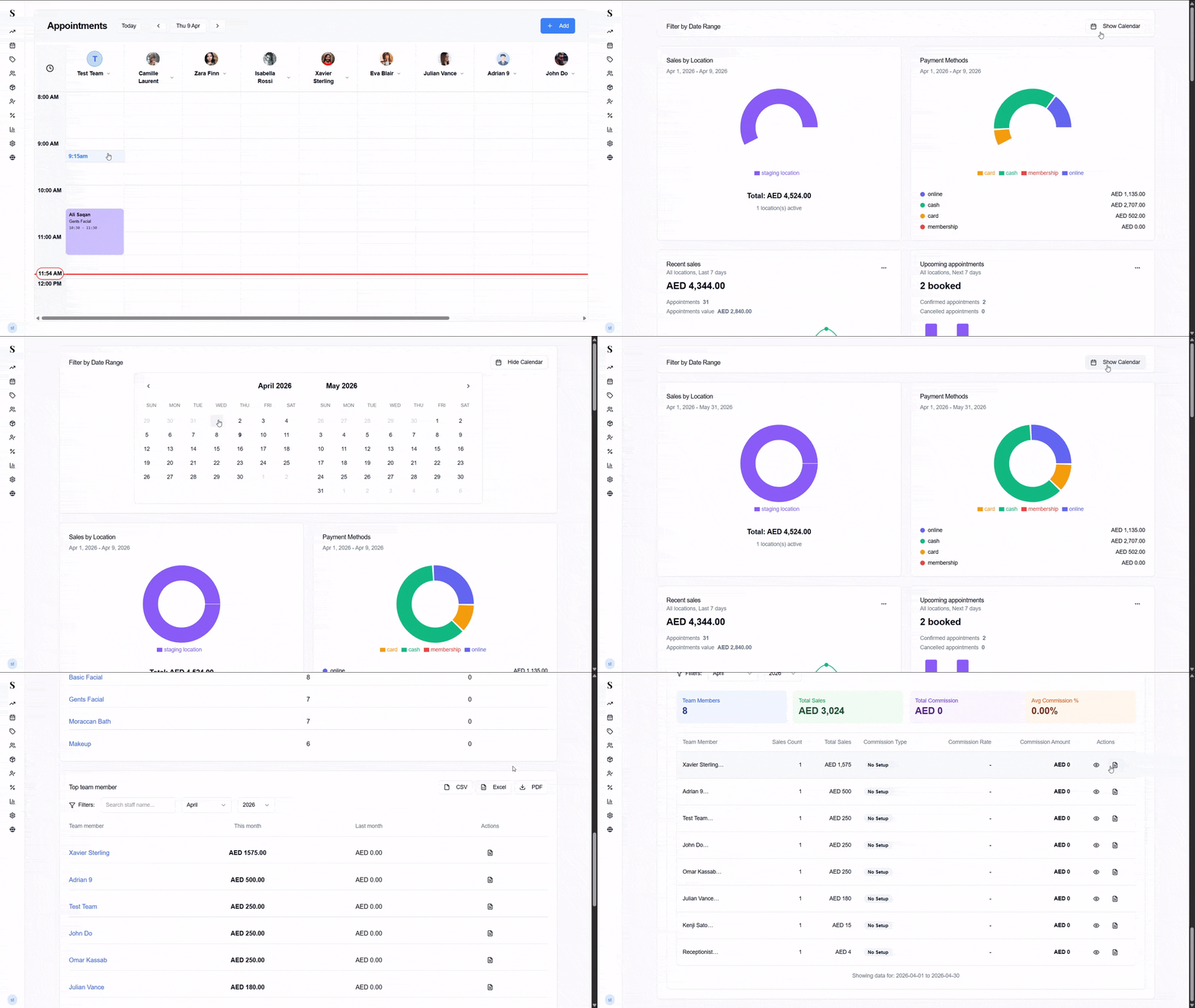
At the top of the Dashboard is the Filter by Date Range bar. By default the dashboard shows recent data, but you can narrow it down to any period you want.
Click Show Calendar on the right side of the filter bar. A two-month calendar picker will appear.
Click a start date, then click an end date. The selected range will be highlighted between the two dates.
The entire Dashboard updates automatically to reflect only that period.
Click Hide Calendar to close the picker when you're done.
Use the < and > arrows on the calendar to navigate to earlier or later months.
Sales by Location
A donut chart showing total revenue broken down by location. Below the chart you'll see the grand total and how many locations are currently active.
This gives you an instant feel for which branches are driving the most revenue — especially useful if you run multiple locations.
Payment Methods
A donut chart right next to Sales by Location, showing how your revenue was collected — broken down by payment method (Cash, Card, Online, Membership, etc.).
Below the chart, each payment method is listed with its exact total for the period. Use this to see whether clients prefer paying by card or cash, or to verify totals against your till at the end of the day.
Recent Sales
All locations · Last 7 days
A summary card showing:
- Total revenue collected over the last 7 days
- Number of appointments completed
- Appointments value — the combined price of all booked services
Below the numbers, a line chart tracks revenue and appointment count day by day so you can spot your busiest days and see whether bookings are translating into actual sales.
Upcoming Appointments
All locations · Next 7 days
A summary card showing what's on the books:
- Total appointments booked
- How many are confirmed
- How many have been cancelled
A bar chart breaks this down day by day — great for spotting gaps in the schedule or flagging a day that has an unusually high cancellation rate.
Appointments Activity
A live feed of the most recent appointment events across all your locations — new bookings, updates, checkouts, and cancellations. Each entry shows the date, time, service, client (or Walk-In), duration, and which staff member is assigned.
This is your go-to for staying on top of last-minute changes, especially if you're managing more than one location.
Today's Next Appointments
A list of the remaining appointments for today, sorted by time. Each entry shows:
- The appointment time
- The service being performed
- The client's name (or Walk-In)
- The staff member handling it
- The status badge (e.g., Booked)
Use this for a quick check of what's still to come in the day.
Top Services
A table showing which services are being booked the most, ranked by volume.
| Column | What it shows |
|---|---|
| Service | The name of the treatment |
| This month | How many times it was booked this month |
| Last month | Last month's count for comparison |
Click on any service name to jump straight to that service in your Catalog.
Top Team Members
A table ranking your staff by total sales for the selected month. You can search by name and filter by month and year.
| Column | What it shows |
|---|---|
| Team member | Staff member's name |
| This month | Total sales value for the current month |
| Last month | Last month's total for comparison |
| Actions | Generate a salary slip for that team member |
The Actions column has a salary slip icon — click it to open a formatted breakdown of that person's services, commission, and total payout for the period.
You can also export the full table using the CSV, Excel, or PDF buttons in the top-right corner.
Commission Calculations
At the bottom of the Dashboard is the Commission Calculations widget. It shows a live summary of what each staff member has earned in commission for the selected month.
At the top of the widget you'll see four summary numbers:
- Team Members — how many staff have sales this period
- Total Sales — combined revenue across all staff
- Total Commission — total commission owed
- Avg Commission % — average commission rate across the team
Below that, the table shows each team member with:
- Their number of sales
- Their total sales value
- Their commission type (or No Setup if commission hasn't been configured yet)
- Their commission rate and calculated amount
- An eye icon to view their breakdown and a salary slip icon to generate their slip
Filter by month and year using the dropdowns at the top of the widget. The date range being shown is displayed at the bottom of the table.
Dashboard Overview
| Section | What it tells you |
|---|---|
| Date range filter | Narrow all dashboard data to any period |
| Sales by Location | Revenue breakdown by branch |
| Payment Methods | How revenue was collected (cash, card, online, etc.) |
| Recent Sales | Last 7 days revenue with a daily trend chart |
| Upcoming Appointments | Next 7 days bookings — confirmed vs. cancelled |
| Appointments Activity | Live feed of the latest appointment events |
| Today's Next Appointments | What's still happening today |
| Top Services | Most booked services this month vs. last |
| Top Team Members | Top earners with salary slip and export |
| Commission Calculations | Monthly commission summary per staff member |