Clients
Manage your client database — add, search, and view full client profiles
The Client List is your salon's client database. Every person who visits your salon can have a profile here, making it easy to look them up, track their history, and manage their memberships and vouchers.
Click Clients in the left menu to get started.
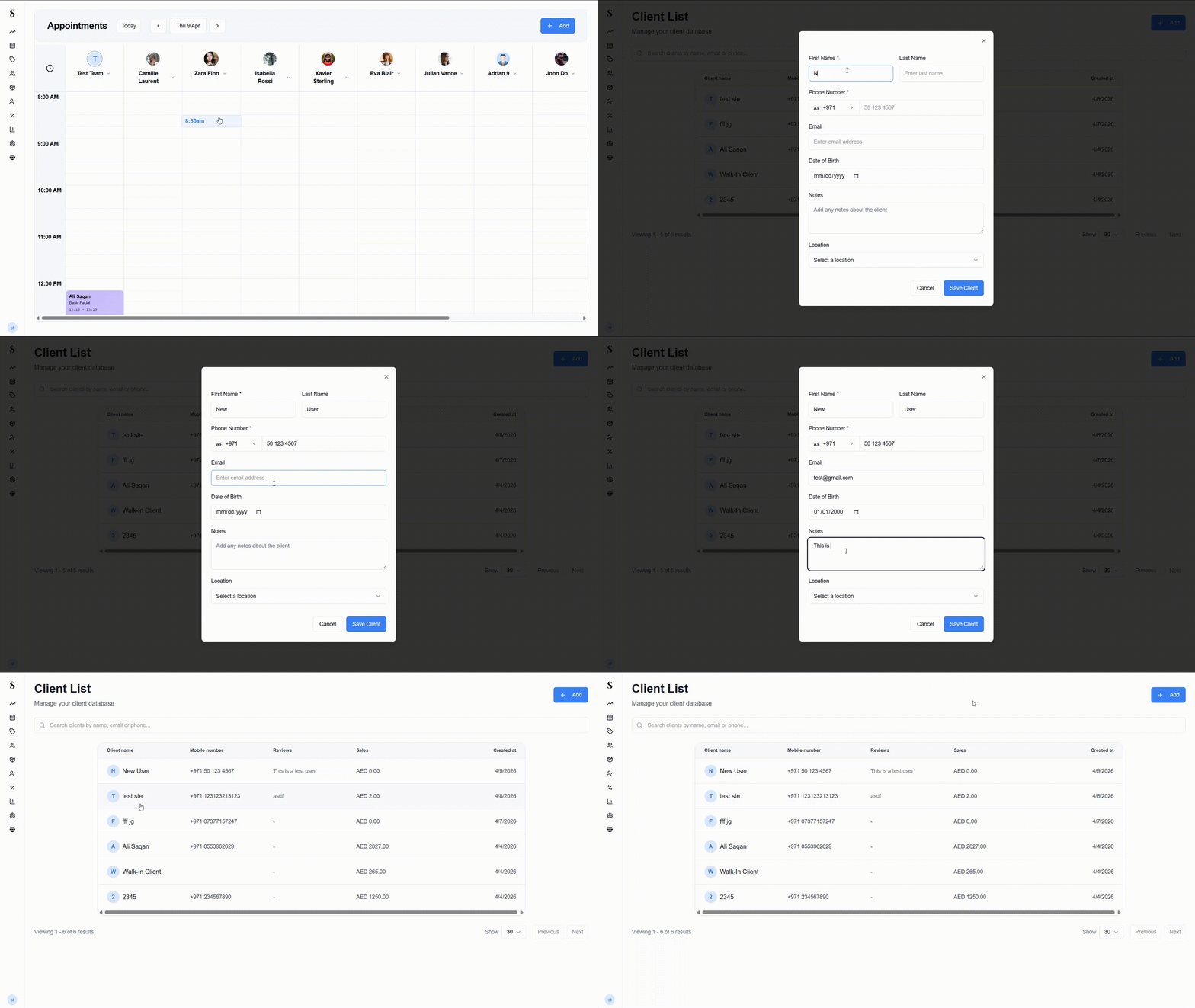
The client list
The main view shows a table of all your clients with the following columns:
| Column | What it shows |
|---|---|
| Client name | Name with an avatar (initials if no photo) |
| Mobile number | Their phone number |
| Reviews | Internal reviews added by your team |
| Sales | Total amount spent across all visits |
| Created at | When the client was added to the system |
Use the search bar at the top to find anyone by name, email, or phone number.
The list is paginated — use the Previous / Next buttons at the bottom to navigate, and adjust the Show dropdown to control how many results appear per page.
Adding a new client
Click the + Add button in the top right corner. A form will pop up.
Fill in the client's details:
- First Name (required)
- Last Name
- Phone Number (required — select the country code from the dropdown)
- Date of Birth
- Notes — any internal notes about the client
- Location — assign them to a specific branch
Click Save Client. They'll appear in the list and be available for booking straight away.
You can also add a client on the spot while booking an appointment in the Calendar — no need to come here first.
Viewing a client's profile
Click on any client's name to open their full profile in a panel. The profile has three sections:
Left — Client details
- Name, phone, and email
- Edit client — update any of their details
- Add review — leave an internal note or review about this client
- Date of birth (can be added here if not set)
- Date the client was added to the system
Middle — Navigation tabs Switch between different parts of the client's history:
| Tab | What it shows |
|---|---|
| Appointments | All appointments with status (Paid, Scheduled, No Show, etc.) |
| Sales | All completed sales with service name, total, and View Details |
| Products | Products purchased by this client |
| Vouchers | Vouchers linked to this client |
| Memberships | Active and completed membership packages with session counts |
| Loyalty | Loyalty programme activity |
Right — Detail view Clicking any item in the tabs shows the full detail. For example, clicking a sale opens the VAT invoice with the service, staff, subtotal, VAT, and total — with options to print or void the sale.
Quick reference
| What do you want to do? | How? |
|---|---|
| Find a client | Type their name, phone, or email in the search bar |
| Add a new client | Click + Add and fill in their name and phone number |
| See how much a client has spent | It shows right on the client list |
| See their full history | Click their name — you'll see appointments, sales, products, and more |
| Add a client while booking | You can create one directly from the Calendar — no need to come here first |